.NET (dotnet)
TL;DR
Use .NET or dotnet LTS version
- .NET 6 (6.0.423) until 12 Nov. 2024
- .NET 8 (8.0.301) until 10 Nov. 2026
.NET Framework vs .NET or .NET Core
It all started with the .NET Framework. Because of naming rule of the file, it's not started dot (.). you may notice tool name in console uses dotnet.
Microsoft came up with .NET core and released this new framework in 2016. It was a complete resketch that was capable of running on Windows, macOS, and Linux. Unlike the .NET framework, .NET Core did not have the constraints for backward compatibility.
.NET (new Name) and .NET Core refer to several technologies including the runtime, the SDK, ASP.NET Core, and Entity Framework Core.
Due to its modular architecture, it has lighter versions of core framework components. This gives developers the option to choose modules and add them by downloading from the NuGet repository. All these result in streamlined deployment and portability.
The .NET framework helps you build web apps, desktop apps, and web services. It works only on the Windows operating system. On the other hand, .NET core is for creating cross-platform cloud apps that run on Windows, Mac, and Linux.
Naming Confusion
2002 - .NET Framework, standard library to make windows development easier and mostly synonymous with C#. The next evolution in windows programming after C++/win32.
ASP.Net - Web applications, you can have both ASP.NET Core & ASP.Net Framework applications .NET Framework - Native windows applications, more feature rich then .NET Core but also slower and only works on windows.
2016 - .NET Core, cross platform ground up replacement for .NET framework, a lot of what worked stayed the same so its not difficult to transition, and what changed was for the better. Runs side by side framework so its not just a new version.
2019 - Last version of .NET Framework 4.8 released & .NET Core 3.1 released
2020 - .NET 5, the latest version of .NET Core but with "Core" dropped from the name. This is a bit confusing because based on the previous year, 5 is the natural next version for Framework, but instead Core went from 3.1 -> 5 and dropped the Core part, and Framework will never get another update.
2021 - .NET 6 and higher, everything else is old and you shouldn't use it anymore
Install - asdf Version Manager
Follow the steps.
- Add Plugin.
# Add plugin
$ asdf plugin add dotnet
# OR
$ asdf plugin add dotnet https://github.com/hensou/asdf-dotnet.git
- Based on your project, choose proper version of dotnet, Install selected version.
# Show all installable versions
$ asdf list-all dotnet

# Install specific version
$ asdf install dotnet {selected version number}

# Set a version globally (on your ~/.tool-versions file)
$ asdf global dotnet {your version}
# OR
$ asdf local dotnet {your version} # four your local project

# Now dotnet commands are available
$ dotnet --version

# Check more detail
$ dotnet --info
Updating global environment variables for CLI
If you need to:
- update/set
DOTNET_ROOTvariable - update/set
MsBuildSDksPathvariable - disable telemetry (i.e. set
DOTNET_CLI_TELEMETRY_OPTOUTto 1)
then, according to your shell, execute one of the following commands:
For bash, use:
$ . ~/.asdf/plugins/dotnet/set-dotnet-env.bash
For zsh shell, instead use:
$ . ~/.asdf/plugins/dotnet/set-dotnet-env.zsh
For fish shell, instead use:
$ source ~/.asdf/plugins/dotnet/set-dotnet-env.fish
For xonsh shell, instead use:
$ source ~/.asdf/plugins/dotnet/set-dotnet-env.xsh
Use the dotnet tool in Rider IDE
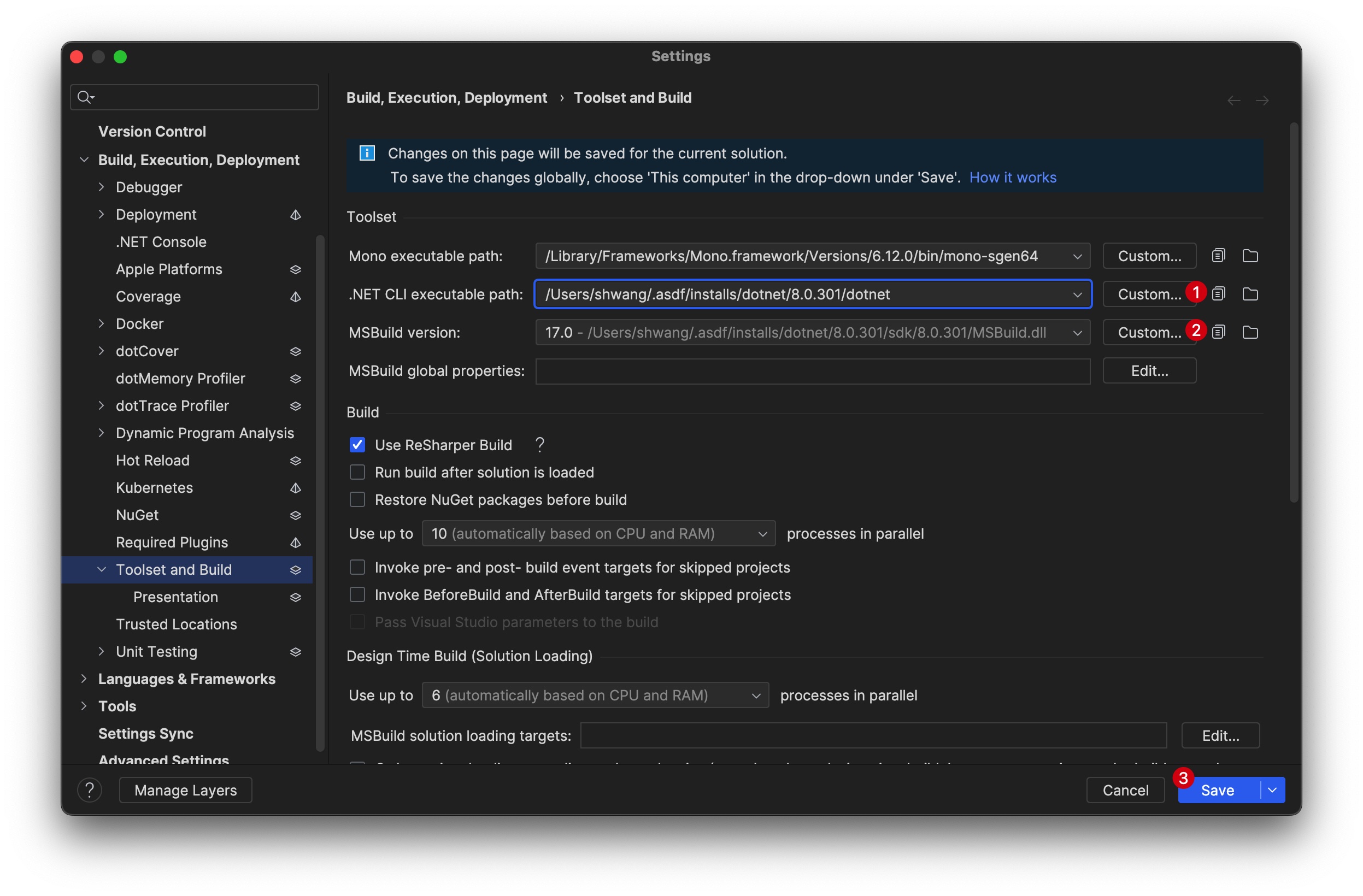
The Rider doesn't recognize the tools automatically. You should select the tools manually.
- If you use
asdfversion manager, .NET CLI path is usually located in your home~/.asdf/installs/dotnet/{yourversion}/dotnet
- Select matched MSBuild version
~/.asdf/installs/dotnet/{yourversion}/sdk/{yourversion}/MSBuild.dll
Change Targets
One Solution (E.g. BrandSync.sln) could have multiple projects. For example,
- SABrandSync (
SABrandSync.csproj) - TPPBrandSync (
TPPBrandSync.csproj)
Right click on the project name (.csproj), you can click the 'Properties' menu.
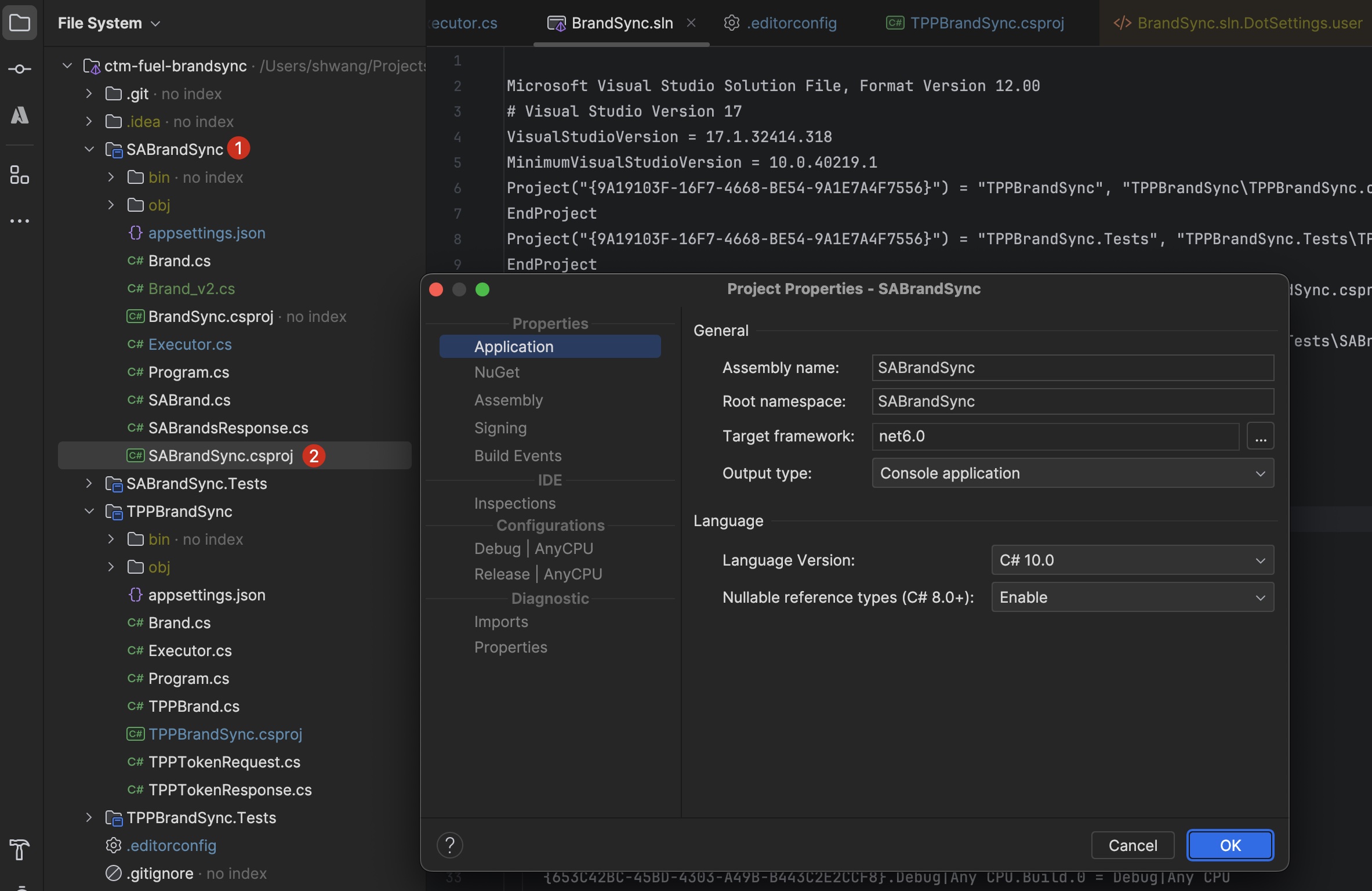
- Target framework: Lets you change the .NET framework version that the project targets. For more information, refer to Framework targeting overview and Target frameworks in SDK-style projects on Microsoft Docs.
- Output type: Lets you choose the artefact that will be produced by building the project. For more information, refer to C# Compiler Options on Microsoft Docs.
- Language version: Use this option to change the C# language version. By default, the language version is set based on the project's target framework. Depending on the selected language version, JetBrains Rider's code inspection detects code issues and suggests improvements relevant to the selected version.
- Nullable reference types: For language versions C# 8.0 and later, you can opt for using Nullable reference types to help you avoid null-reference exceptions.
More detail: https://www.jetbrains.com/help/rider/Build_Configurations.html#project
Troubleshoots
Installing or Versioning Conflict Issues
You should remove previous dotnet tool in your machine if you have installing or versioning issues. You can find Base Path of it.
$ dotnet --info
- Delete .NET installed via Brew by running
brew uninstall dotnetif you have brew version like/opt/homebrew/Cellar/... - I would recommend delete all .NET by using .NET uninstall tool and do fresh installation.
- Or, you can remove the actual directory
- Try installing with your version manager.
- If you are using a Mac with M1 chip, then use ARM64. For intel, you can use X64.